A self-order kiosk connected to your till and kitchen
Guests choose eat in or take away, build their order and pay by card at the kiosk. As soon as the payment is in, the order is in the kitchen and the guest gets a pickup number.
- Card or contactless payment at the kiosk
- Sent to the kitchen only once paid
- Pickup number for the guest and on the kitchen ticket
- The same menu as your till
How the kiosk works
Four steps for the guest. Your team only sees orders that are already paid.
- 1
Eat in or take away
The guest taps the screen and chooses to eat in or take away. It is printed on the kitchen ticket too.
- 2
Build the order
Dishes, meal deals, options and extras come from the same menu as your till. Change the menu and the kiosk shows it too.
- 3
Pay at the kiosk
The guest pays by card or contactless on the payment terminal at the kiosk. If the card is declined, they try again or cancel.
- 4
Pickup number
Once paid, the guest gets a pickup number. The order goes to the kitchen screen and the ticket printers, and the number appears on the pickup screen.
Why a self-order kiosk?
A shorter queue at the counter, and your staff keep their hands free for the kitchen and the guests.
Shorter queues
Guests order side by side at the kiosk instead of one by one at the till.
Options and meal deals in view
Sizes, extras and meal deals sit next to every dish, so guests pick what they want with it themselves.
No re-keying errors
The order goes straight from the guest to the kitchen screen and the ticket. Nobody has to copy it.
Paid first, then cooked
An order only reaches the kitchen once it is paid. If a guest walks away, their order lapses on its own.
One system
Kiosk, till and kitchen screen share the same menu, the same stock and the same pickup numbers.
Several kiosks per location
Add a second kiosk for busy hours. Pickup numbers simply continue per location.
A kiosk or your own tablet
The kiosk runs in the Conciar app. You choose the device that goes with it.
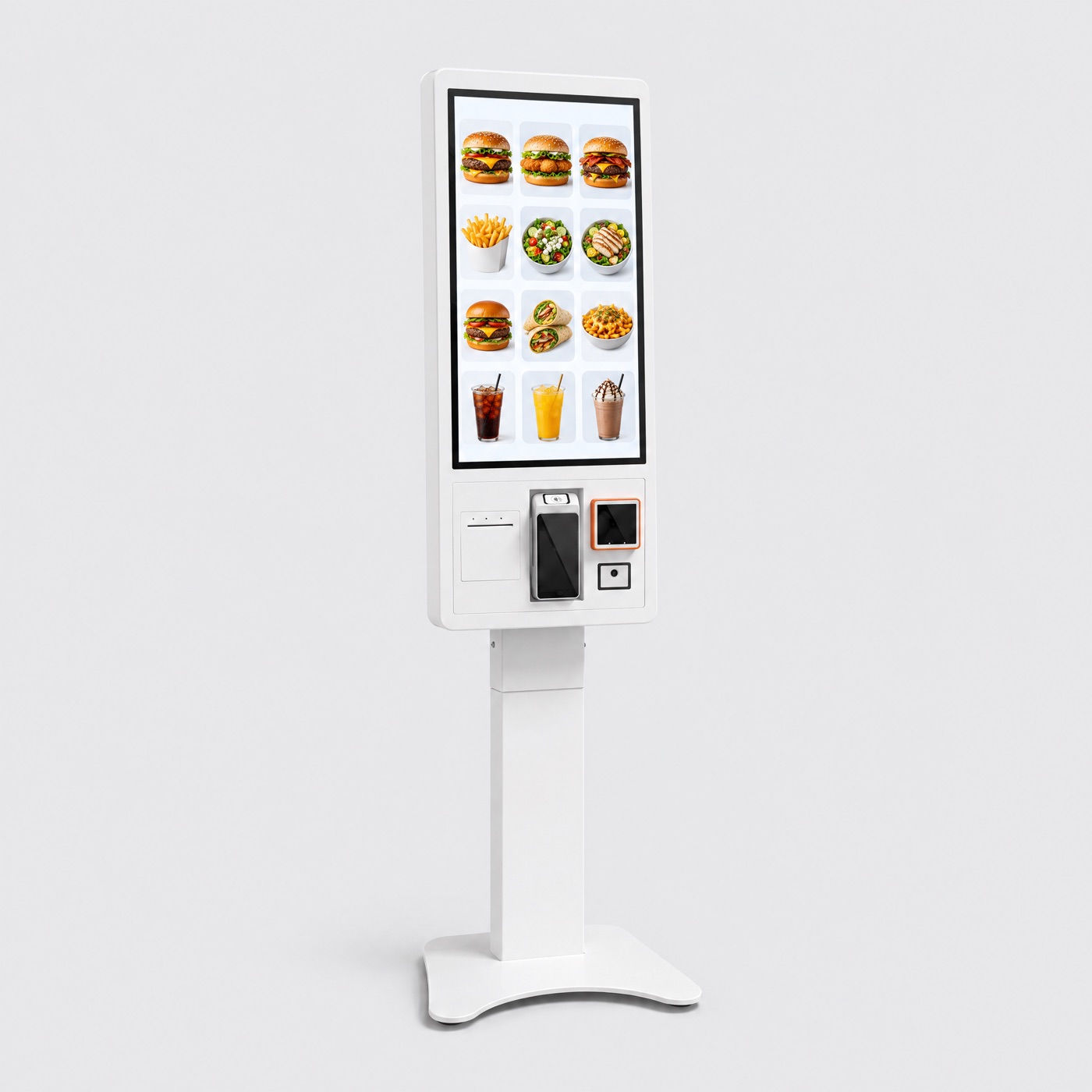
Ready-made kiosk
A free-standing kiosk with a large touchscreen. Order it with your plan in the configurator.
Your own tablet
An iPad or Android tablet on a stand, with a connected payment terminal beside it.
Works with
- Payment terminal
- Kitchen screen
- Ticket printer
- Pickup screen
Kiosk, QR ordering or table tablet?
Conciar has all three. They share one menu, so you can use them side by side.
| Self-order kiosk | QR code on the table | Tablet on the table | |
|---|---|---|---|
| Where does the guest order? | At the entrance or the counter | On their own phone, at the table | On a tablet at the table |
| Paying | Straight away, by card at the kiosk | On the phone or with the staff | On the payment terminal or the phone |
| Best for | Fast food, lunch, takeaway and food courts | Terraces and table-service restaurants | Restaurants with fixed tables |
| Hardware | Kiosk or tablet with a payment terminal | Just QR codes on the tables | One tablet per table |
QR ordering is included in Growth and available as an add-on on Starter.
Self-order kiosk FAQ
What is a self-order kiosk?
A self-order kiosk is a free-standing touchscreen where guests order and pay themselves, without going to the till. It is also called a self-service kiosk or ordering kiosk.
What does a self-order kiosk cost?
The kiosk software is part of Conciar for restaurants. For the hardware, pick a ready-made kiosk in the configurator or use your own tablet with a payment terminal. Current prices are on the pricing page and in the configurator.
Can guests pay cash at the kiosk?
No. At the kiosk the guest pays by card or contactless. Guests who want to pay cash order at the till.
Does the order reach my kitchen screen and ticket printer?
Yes. As soon as the payment is in, the order goes to your kitchen screen and the right stations' ticket printers, with the pickup number and 'eat in' or 'takeaway' on it.
Can I use more than one kiosk?
Yes, as many as you like per location. They share that location's pickup numbers, just like the till.
Do I keep a separate menu for the kiosk?
No. The kiosk uses the same menu as your till and the rest of Conciar.
How do I set up a kiosk?
Open the Conciar app on the device, go to settings and switch on the self-order kiosk. Choose the payment terminal and the location, and the device is ready for guests. Only a manager can do this.
Ready for a self-order kiosk?
Try Conciar free for 30 days, with till, kitchen screen and kiosk in one system.